 MGSV Modding Wiki
Localization
Contents
Contents:This guide will teach you how to localize Metal Gear Solid V: The Phantom Pain and Metal Gear Solid V: Ground Zeroes.
Getting Started
Currently, there is no straightforward way to add an entirely new language as an option in the game. This is due to the fact that language-related assets are embedded in .exe files and some UI components that have not yet been fully reversed. This guide will focus on what is achievable, such as modifying existing language packs and text files.
Needed Tools
To unpack game files
We recommend using the File Monolith Modmaker Toolset (Recommended) to unpack The Phantom Pain’s files.
Alternatively, use the latest version of GzTool to unpack and repack FPK/FPKD and .dat files for The Phantom Pain.
For Ground Zeroes, use GzTool v0.2.
For more detailed instructions, see Unpacking and Organizing Game Files.
To unpack/repack .ffnt, .subp, .lng/lng2 files
Use FoxEngine.TranslationTool to unpack .ffnt, .subp, and .lng/lng2 files in The Phantom Pain.
For Ground Zeroes, you can use the same tool except for .lng files, where only version FoxEngine.TranslationTool v0.1.3 works.
To unpack/repack .fox2 files
Use FoxTool to unpack .Fox2 (DataSetFile2).
Tip
Always refer to the README section inside each tool for specific instructions on how to use the tool and additional details on the files it can unpack.
Editing Fonts
The game uses two types of font files: x
.ffnt(Fox Font) - This is the default font file, found in\Assets\tpp\font\..fnt(Font) - These are additional fonts used for specific UI elements (e.g., ZZZ, STN, or LOCKED during homing missile use).
.ffnt (Fox Font)
To edit .ffnt files, use FfntTool found in FoxEngine.TranslationTool.
Another Way to Use FfntTool
First, create an empty folder with the exact same name as the .ffnt file you want to edit.
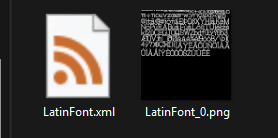
Then, drag and drop the .ffnt file into the FfntTool’s .exe. The contents of the .ffnt file will appear inside the folder.
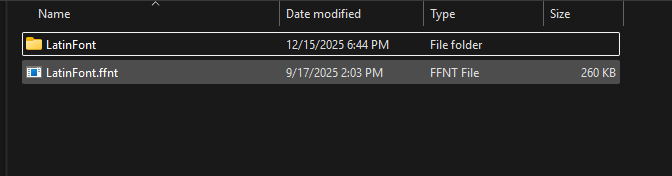
GlyphMap
The GlyphMap stores data about individual glyphs (characters like letters, numbers, punctuation, etc.). Each glyph entry includes properties like Character, XOffset, YOffset, Width, Height, and other spacing parameters.
Example:
<Glyph Character="©" XOffset="457" YOffset="22" Width="27" Height="27" Layer="0" HorizontalSpace="29" HorizontalShift="1" VerticalShift="15" Unknown1="0" Unknown2="0" />
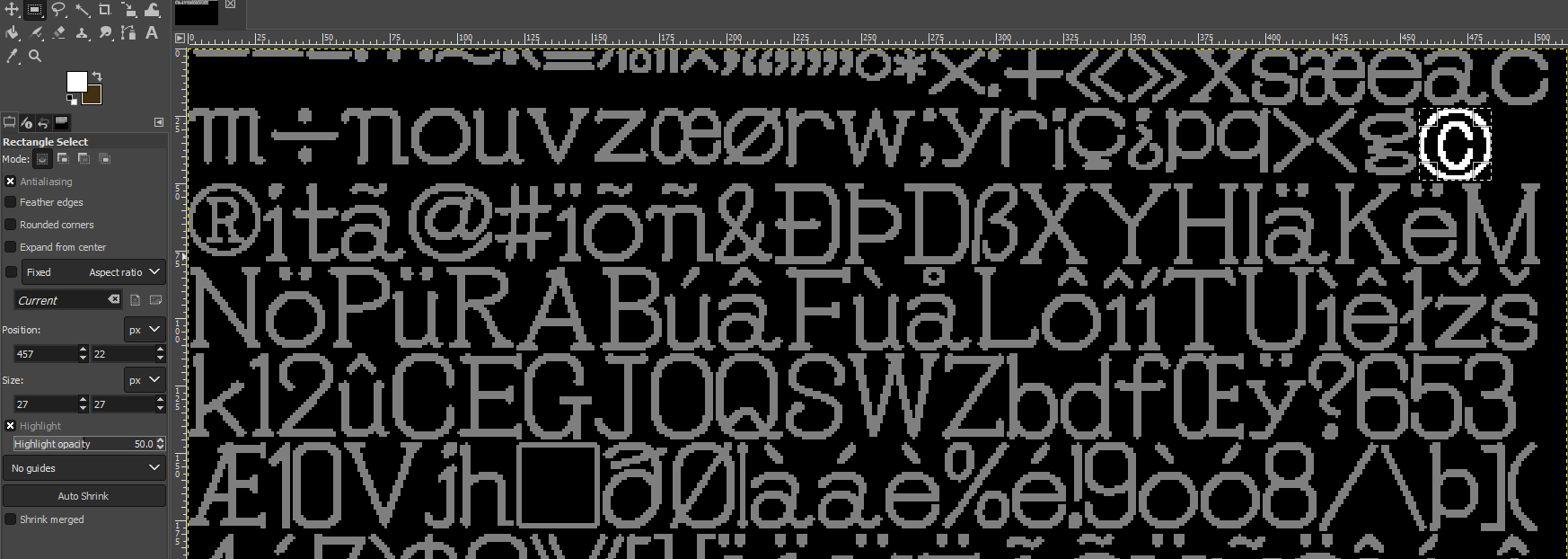
.fnt (Font)
This section is TBA (To Be Added).
Tip
Some display text properties are stored in .fox2 files, which can be found in \Assets\tpp\pack\ui\ui_resident_data_fpkd\Assets\tpp\ui\GraphAsset\Common\data.
For more details, check out the UiFontDataElement documentation.
Subtitles
Subtitles are stored in .subp files. These files are placed in specific paths, and their locations are set within a .fox2 (DataSetFile2) file inside the fpkd files.
When you open the .fox2 file, you’ll find a class called SubtitlesPackage with two important properties:
subtitlesPackage: Loads the.subpfiles located inside thefpk(Fox Package) file with the same name.subtitlesStreamPath: Loads.subpfiles from\Assets\tpp\ui\Subtitles\.
To edit .subp files, use SubpTool from FoxEngine.TranslationTool.
SubpTool generates an .xml file with the text to edit.
Tip
In tape.subp, text will appear as [C=XX], where XX represents the speaker’s name. For example:
<Line Text="[C=16]Boss, there's something I want to talk about. ">
  <Timing Start="100" End="276" />
</Line>
The [C=16] represents the name of the speaker that will be displayed in the Logs from the idroid menu.
So… don’t remove it ;).

UI
Unlike .subp files, .lng and .lng2 files are stored within \Assets\tpp\pack\ and scattered across directories like \Assets\tpp\pack\mission2\common\, \Assets\tpp\pack\ui\, or \Assets\tpp\pack\ui\lang.
You’ll need to locate and edit these files manually.